Image Generation — Styles & AI Engines
Summary: This guide explains how to switch AI engines and apply LoRA styles to create images in the artistic style you want.
Change AI Engine
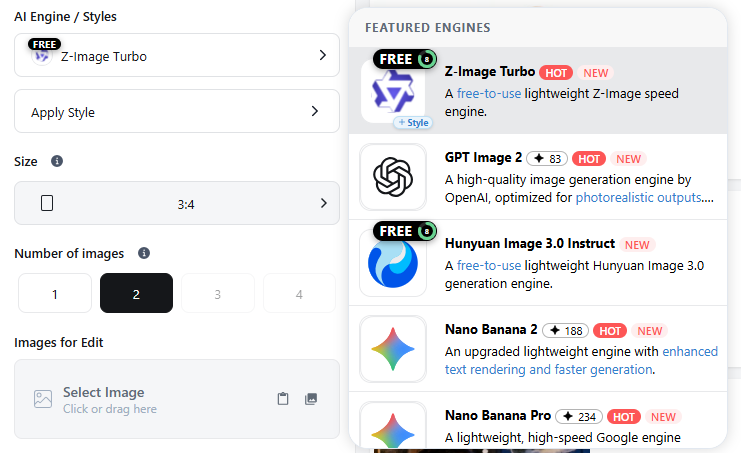
How to select the AI engine to use for image generation.
- Under AI Engine / Style, click "Z-Image Turbo" to open the AI engine (base generation model) list.
- Select the AI engine (base generation model) you want from the popup.
Apply a Style
- You can select a style for the image you want to generate.
- In the left control panel on the generation screen, click the Apply Style button to open a popup with a variety of available style models.
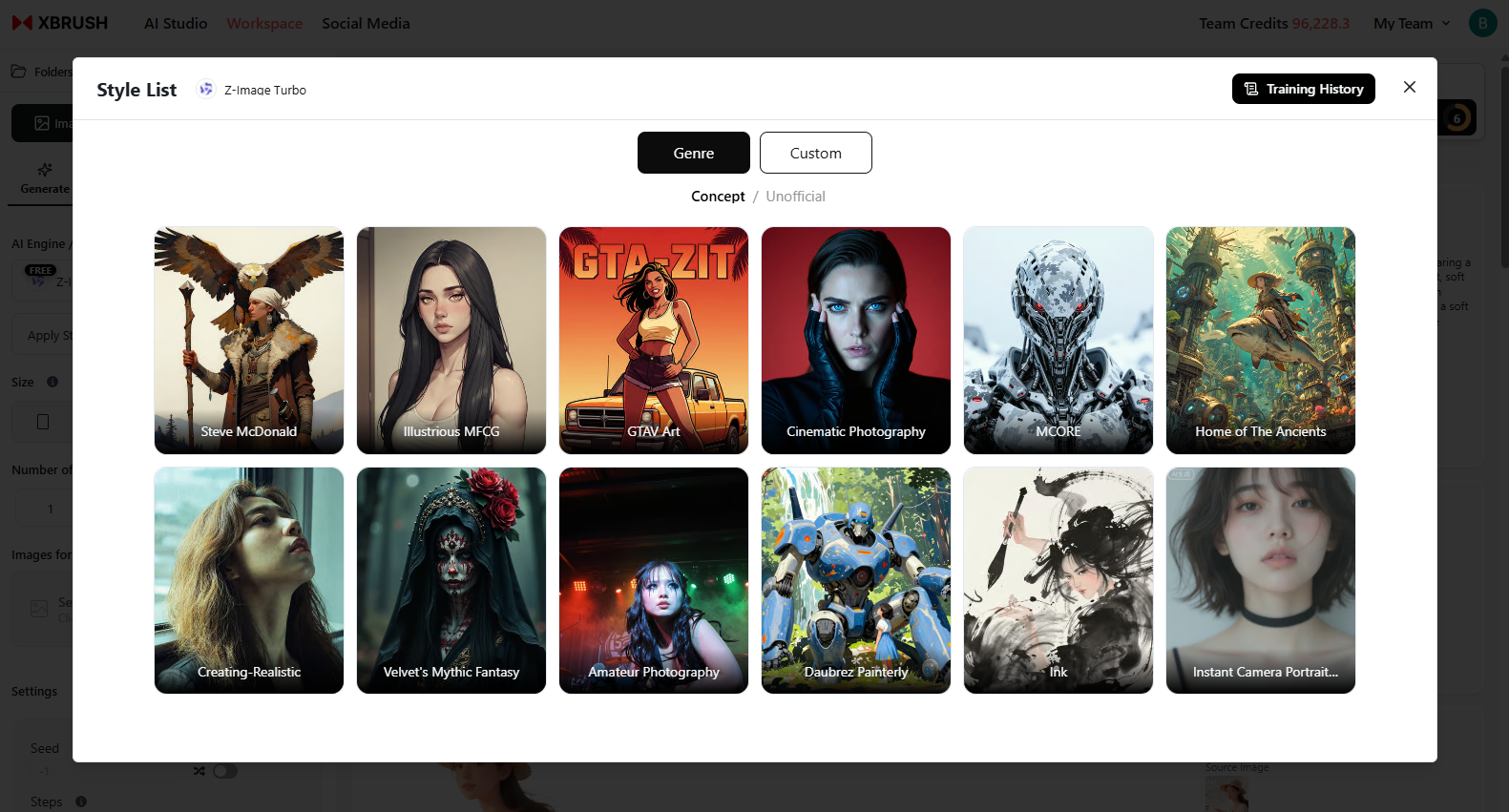 How to apply a style to an image.
- You can select and apply multiple styles at the same time.
- Select a style, enter your idea, then click the "Generate Image" button to create the image.
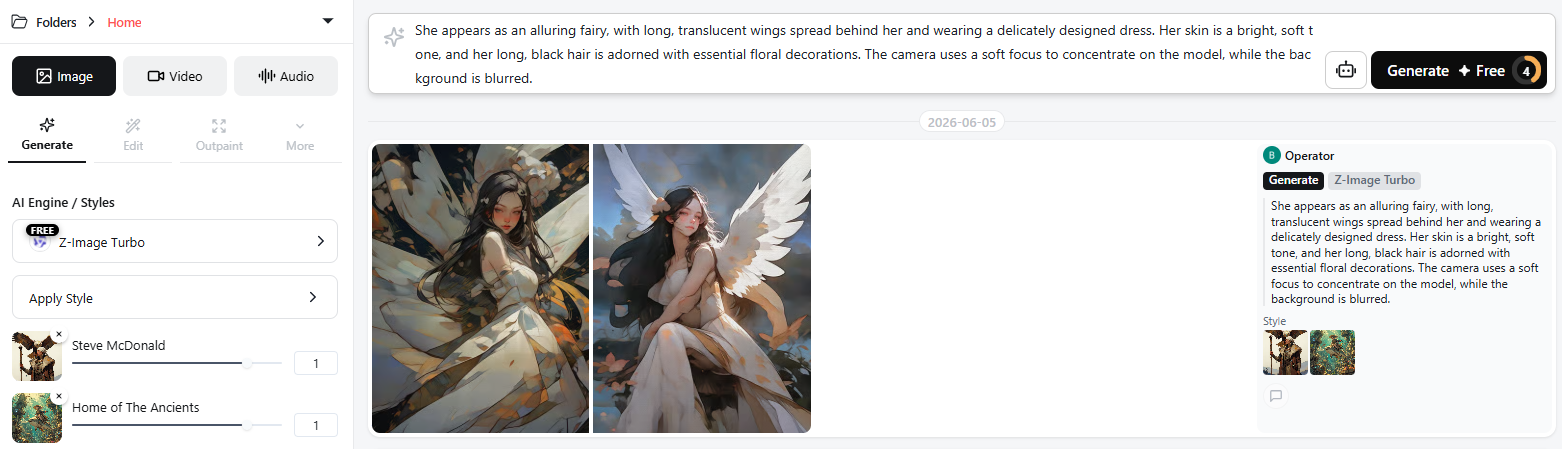 Result of generating an image with a style applied.
Next Steps
- Using Reference Images & Prompts
- Image Enhancement — Upscale for higher resolution, inpaint for detailed edits
- Video Generation — Convert images into 5- or 10-second videos