My Profile
Summary: My Profile is where you manage your XBRUSH account. From the left sidebar, access your published content, change your password, or delete your account.
How to Access Your Profile
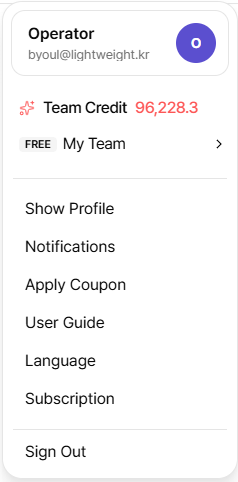
Click the user icon in the top-right corner to open the user menu.
- Team Credits: Your current team credit balance is shown at the top of the menu.
- View Profile: Opens the profile page.
- Notifications: Notification settings.
- Use Coupon: Redeem a coupon code.
- Manual: Opens the user guide.
- Language: Change the display language.
- Subscription: Go to subscription and billing.
- Sign Out: Sign out.
Profile Overview
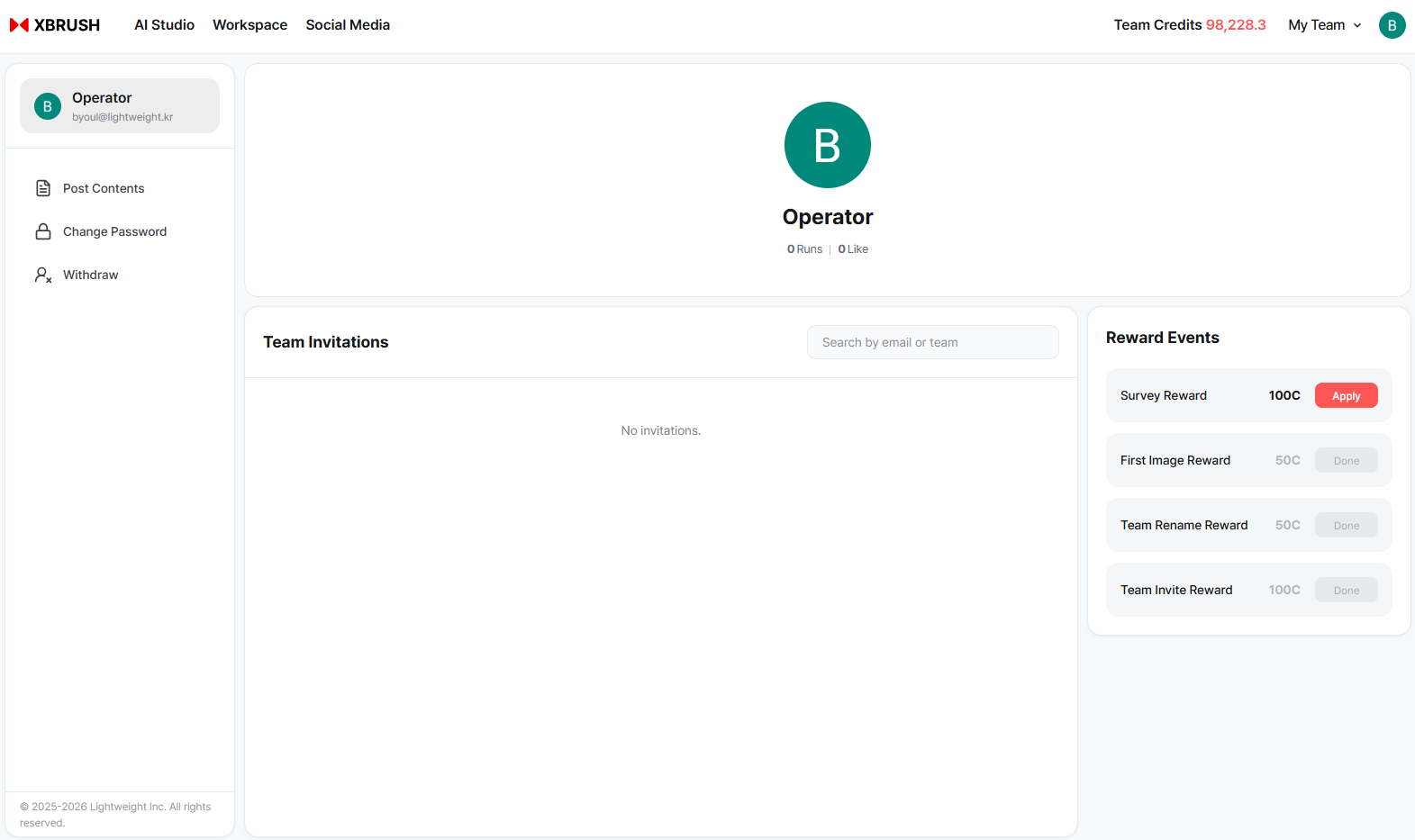
Profile main screen — profile image, nickname, stats, team invitations, and reward events.
The profile page shows:
| Element | Description |
|---|---|
| Profile Image | Your avatar displayed to other users |
| Nickname | The name shown in the community and on posts |
| Runs / Likes | Number of imitation generations and likes received on your published content |
| Team Invitations | Search for teams to join by email |
| Reward Events | Reward events — earn credits by completing activities (see below) |
Reward Events
| Event | Credits |
|---|---|
| Sign-up survey reward | 100C |
| First image generated | 50C |
| Team name changed | 50C |
| Team member invited | 100C |
Click Participate on any available event to earn the reward.
Editing Your Profile Image
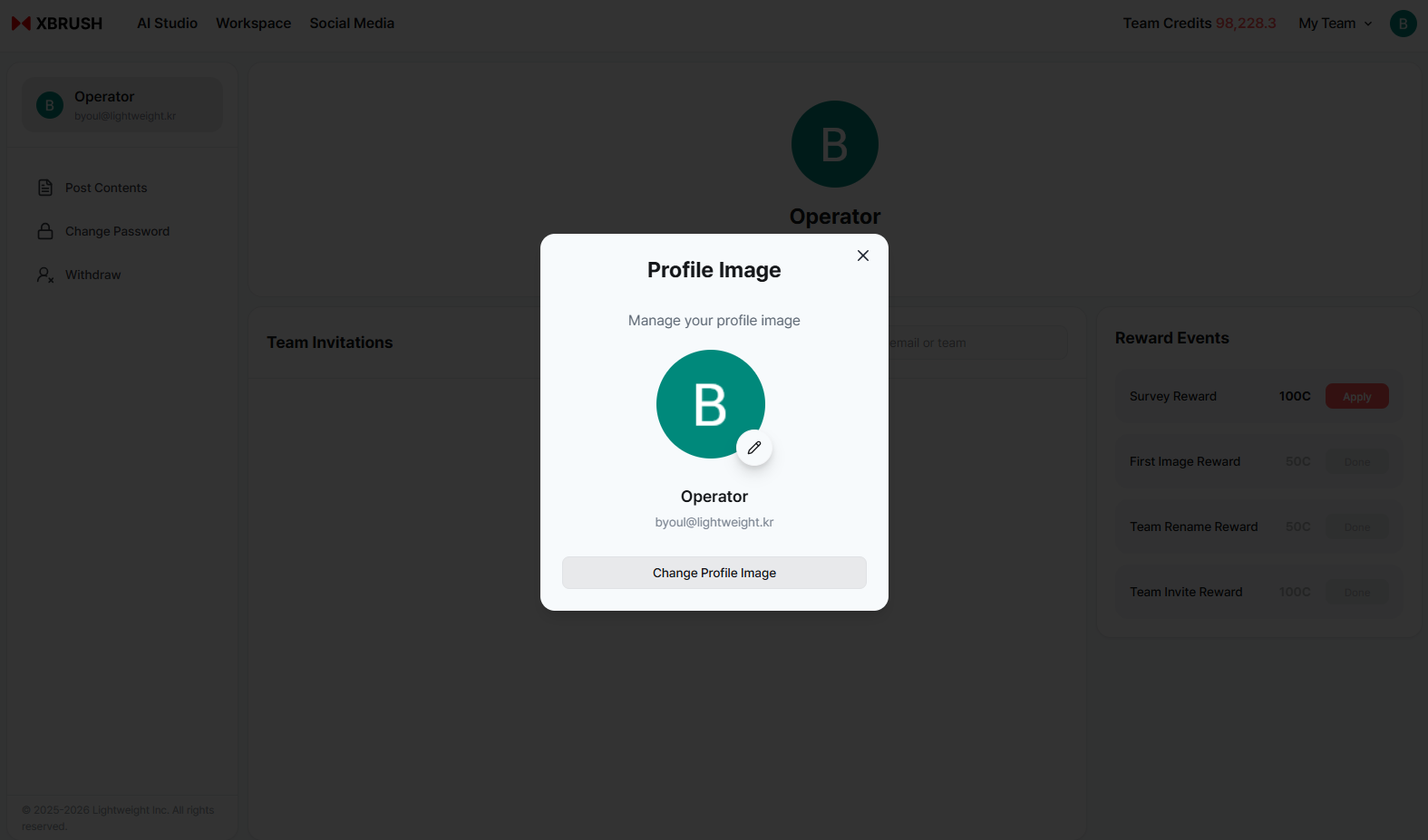
Profile image management modal.
- On the profile page, click the profile image circle.
- The Profile Image modal opens.
- Click the Edit icon on the image or click Change Profile Image at the bottom.
- Select an image file to upload. The image is applied immediately.
Recommended specifications:
- Format: JPG or PNG
- Aspect ratio: Square (e.g., 256×256px or larger)
- File size: 5MB or less
Changing Your Nickname
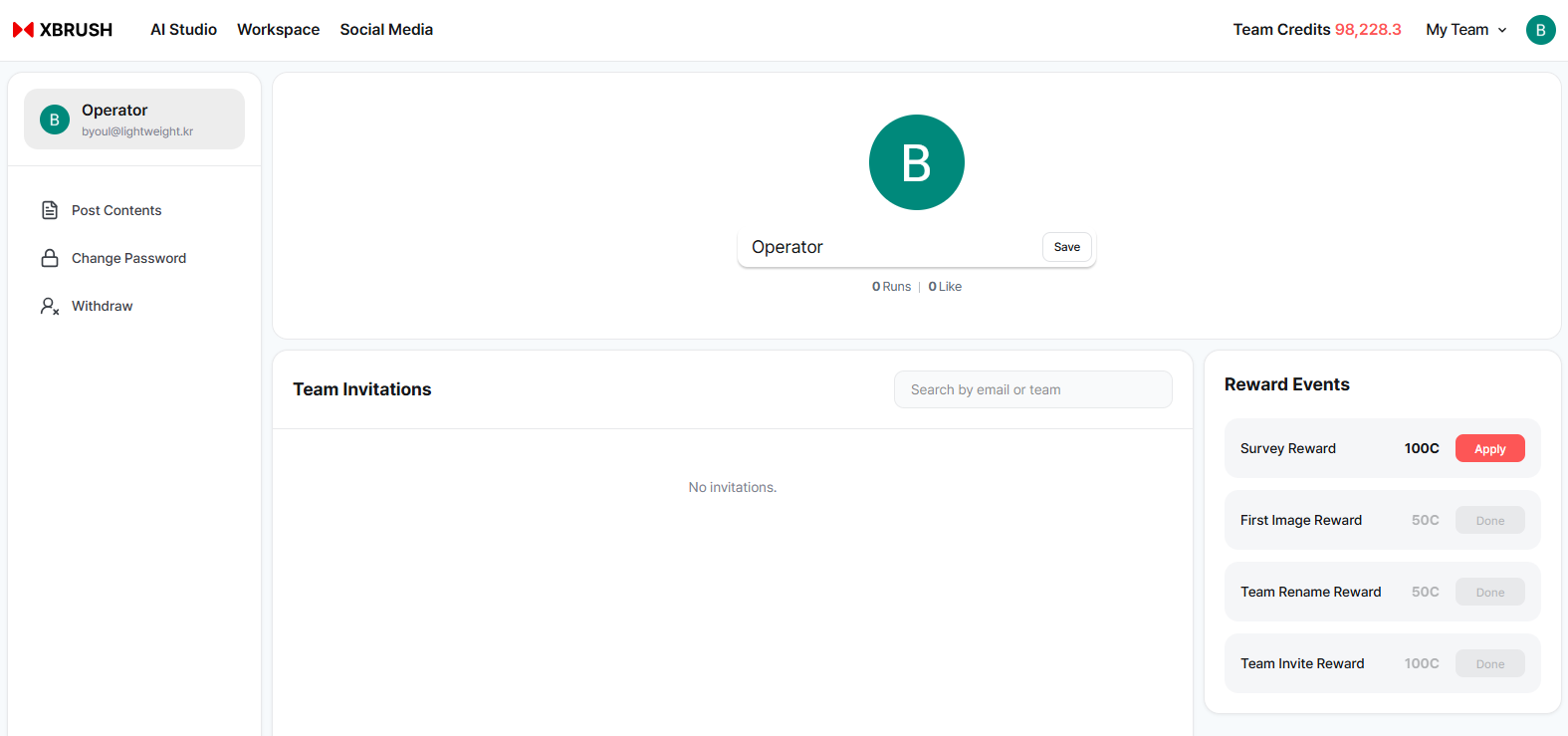
Nickname edit field — type and click Save to save.
- On the profile page, click the nickname text below the profile image.
- The nickname becomes an editable input field.
- Enter your new nickname.
- Click Save to save.
Nickname rules:
- 2–20 characters
- Korean, English, numbers, and underscores (_) are allowed
- Nicknames already in use by other accounts are not available
Published Content
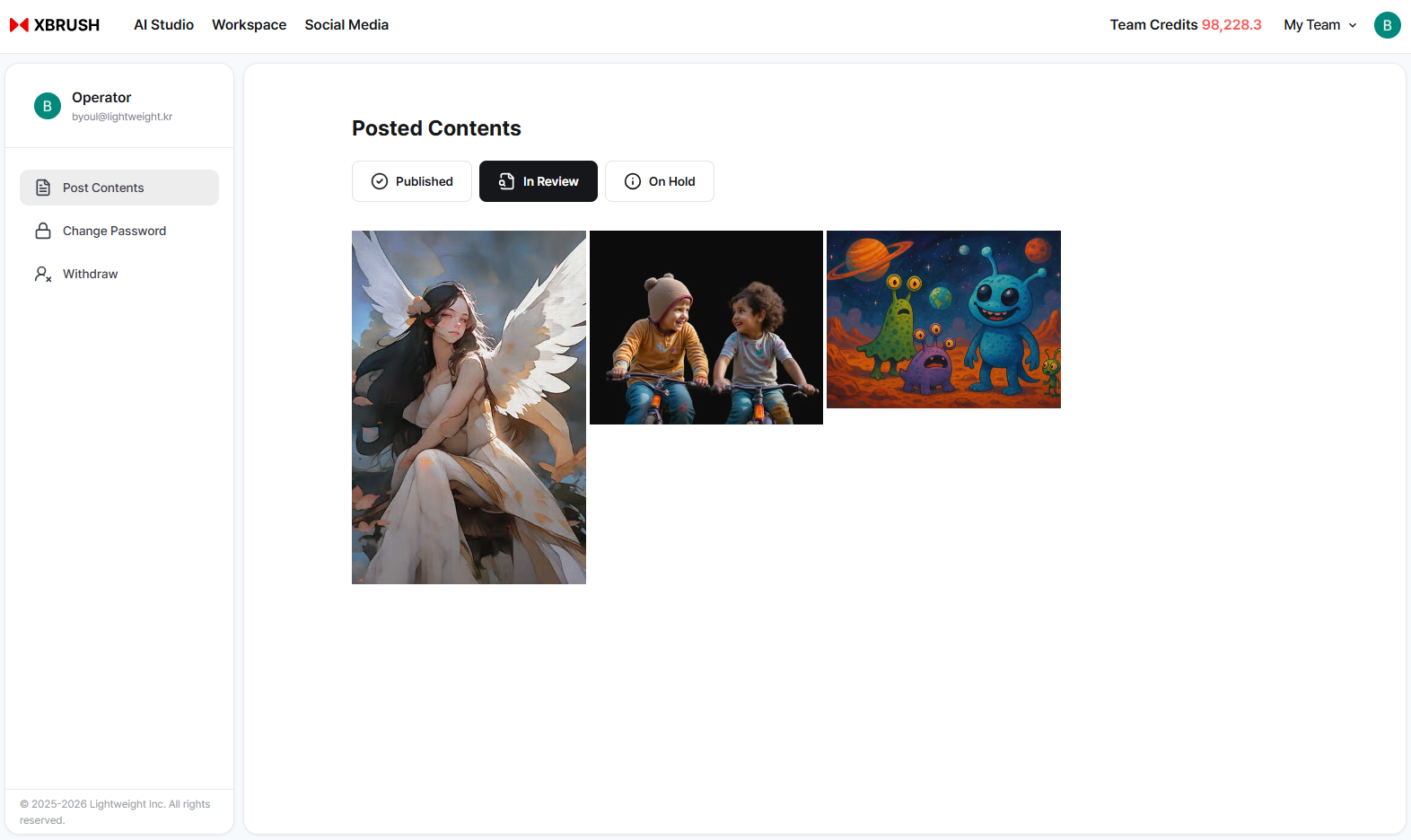
View and manage the status of your published content.
Click Published Content in the left sidebar to manage images you have submitted for publication.
| Tab | Description |
|---|---|
| Published | Images that have passed review and are publicly visible |
| Under Review | Images awaiting administrator review |
| Publication Held | Images that were rejected during review and set to private |
Publication Workflow
- Click the Publish button on an image → status changes to Under Review
- An administrator reviews the image against content guidelines
- Approved → Published (visible to the community) / Rejected → Publication Held
- Images in Publication Held can be revised and resubmitted
Deleting Published Content
Hover over an image and click the delete button that appears. Deleted images cannot be recovered.
Password Reset
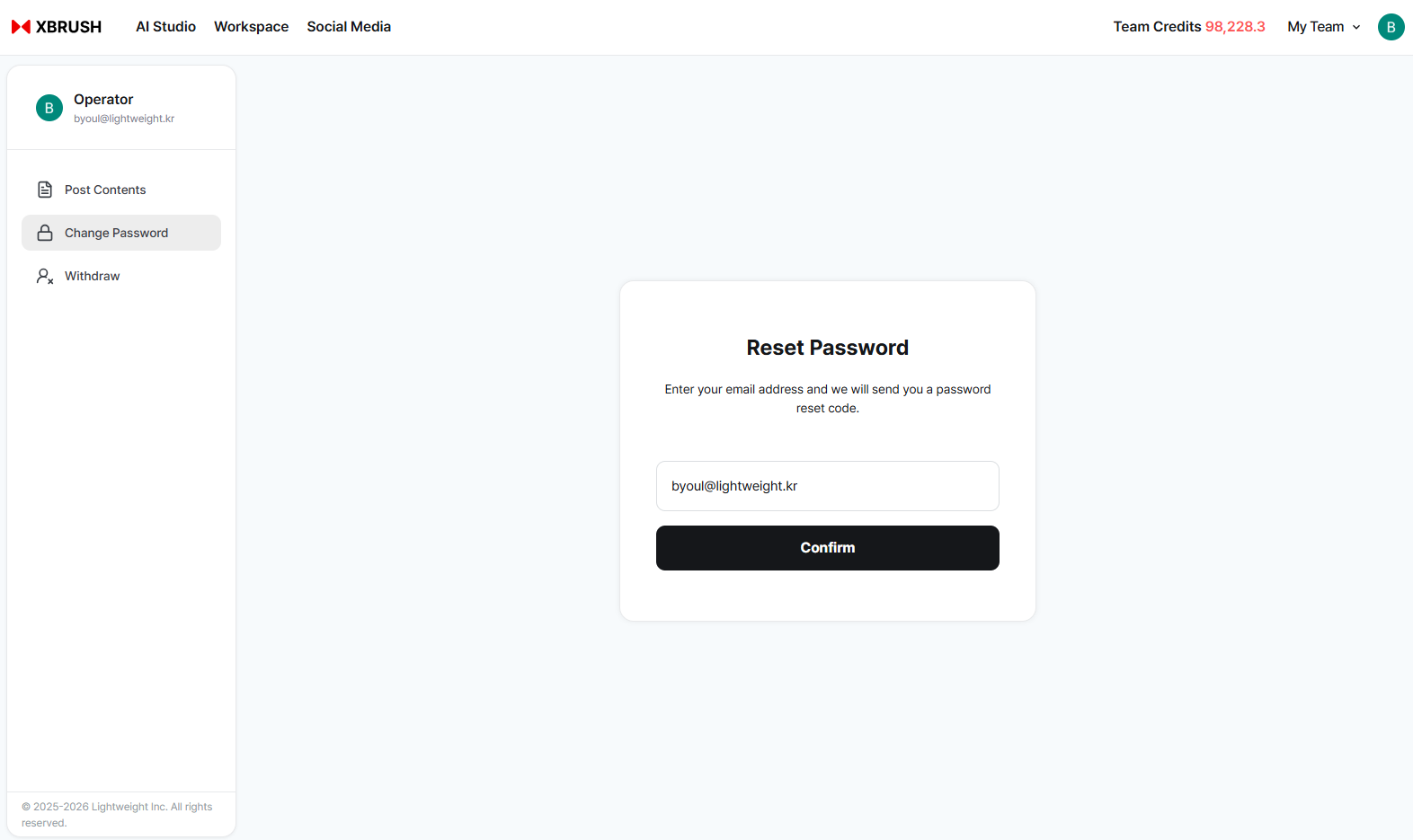
Enter your email address to receive a password reset code.
Click Reset Password in the left sidebar.
- Your registered email address is pre-filled in the input field.
- Confirm the email address and click Confirm.
- A password reset code is sent to that email address.
- Follow the link in the email to set a new password.
Note: This option is only available for accounts that signed up with email and password. Social login users (Google, Kakao, Naver) do not have a separate XBRUSH password — manage your password through your social provider.
Account Deletion
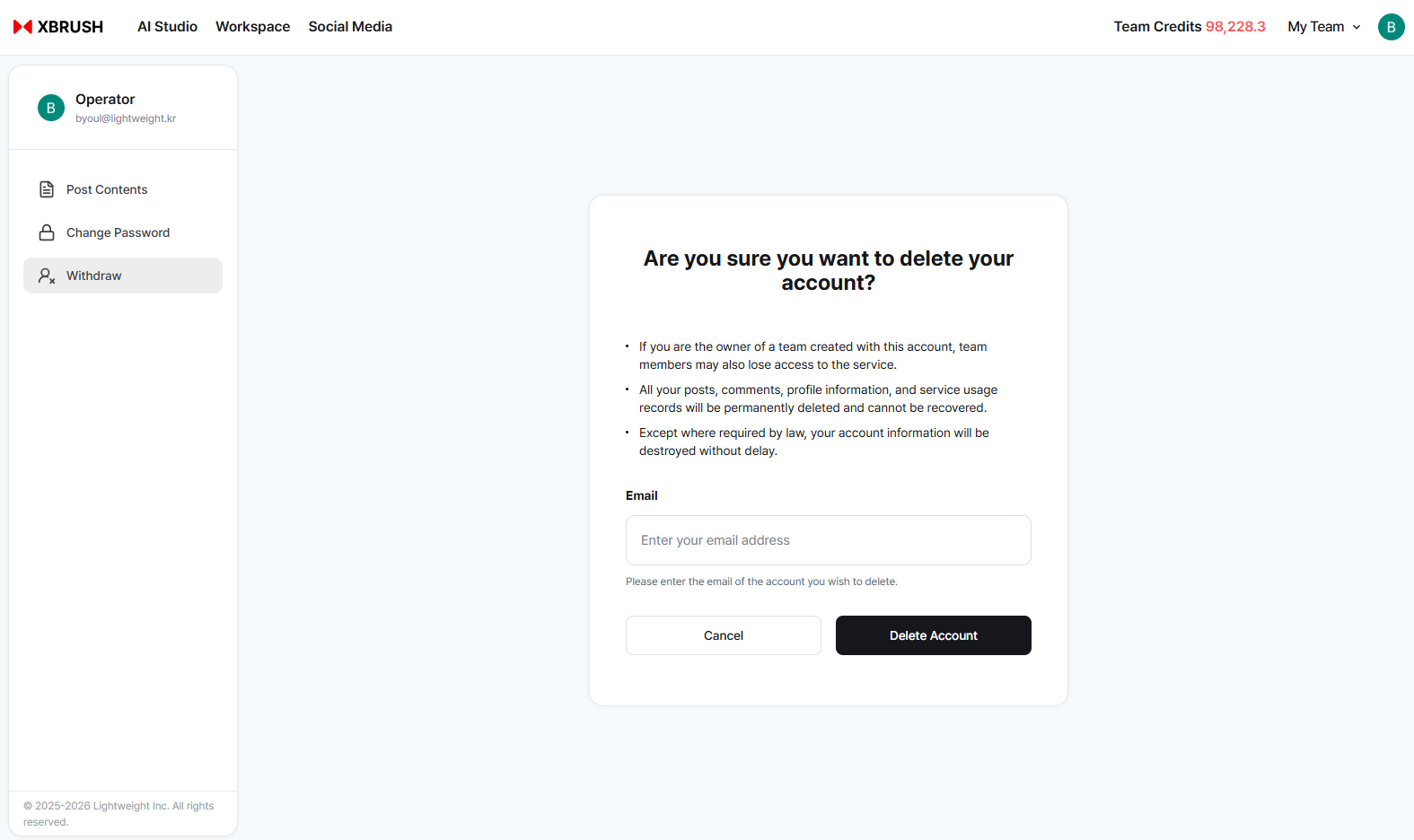
Account deletion confirmation — enter your email address to confirm.
Click Delete Account in the left sidebar.
- Read the warnings in the confirmation dialog carefully.
- Enter your email address in the input field to confirm.
- Click Confirm Deletion to permanently delete your account.
Before deleting your account:
- Account deletion is permanent and cannot be undone.
- All generated images, videos, and workspace content will be permanently removed.
- Any unused credits or remaining subscription time will be forfeited and are not refundable.
- If you have an active subscription, cancel it first to avoid being charged again.
- If you are an Owner of a team, transfer ownership or delete the team before proceeding.
To request manual account deletion, contact contact@lightweight.kr.